
Step by Step
Management View
Click the phone Icons down below, to show how easy it is to utilize our App to the fullest!
1. Viewing your work orders for the day.
2. Applying Filters to work order view.
Viewing your work orders for the day & Applying Filters!
01

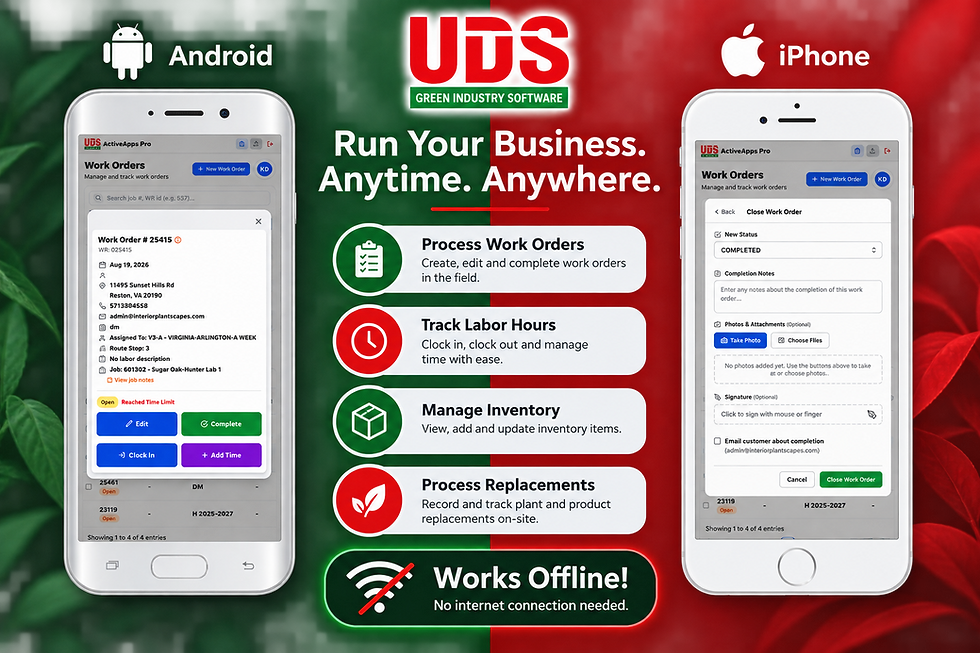
Your work orders are at the bottom the page. Verify the filters at the top of the page, before processing to verify correct information.
1. Verify all the filters on the top section of the screen (STARTING WITH STATUS).
2. Click on the work order your choosing at the bottom.
3. Once the W/O comes up choose what you'd like to do next. (EDIT, COMPLETE, CLOCK IN AND LASTLY ADD LABOR TIME IF NEEDED.)
02
Clocking In and Out. // Adding time to Work Orders
Clocking in, is easy as Pie. Verify the Work Order you are working on at the bottom of the page.
1. Click on the work order you need to work on.
2. Then click on clock on the blue button (At the bottom of the left screen.
03
Viewing Job Inventory and creating a replacement.
Viewing your job inventory with ease.
1. Click on the the box icon on the top right hand corner.
2. Second Page, choose your job number with the drop down arrow (towards the right).
3. Click your inventory item, then slide over to the right and choose replace.
4. Select your item by: clicking the drop down number field (or you can type inside this field).
5. Verify the original and new items are correct.
6. Enter the quantity, and add any photos on the right side under (Plant Photos).
7. On the bottom section of the page. You can enter the supervisor to notify.
8. Then choose Return/Throw Away
9. Next drop downs will be: Person assigned to, serial number, option to change item#, and lastly any notes!
04
Partially Closed or Full Closed Work Orders // Checking Off Inventory Items.
Clocking in, is easy as Pie. Verify the Work Order you are working on at the bottom of the page.
1. Choose // click your work order at the bottom of the page.
2. On the second page press complete.
3. On the last page, at the top under New Status, click the Partially Complete or Completed icon.
4. Add any completion notes.
5. Close Inventory Items drop down: Check off each work report detail line.
6. Click on the Add Pictures, or attach files to insert a photo.
7. You can add a signature.
8. Lastly, you can check off the box on the left hand side (bottom screen). To send the status to a supervisor.
Business Info
Address.
P.O. BOX 6168, Hudson FL 34674
Email.
INTERIORSCAPER@UDSGIS.COM
Telephone.
800-626-7247
Opening Hours
Mon - Fri
9 am – 5 pm
Sat
9 am – 2 pm
Contact
Business and contact information